Creating An Icon, Favourite, Bookmark or Shortcut
Adding an icon to the desktop, adding bookmark to the desktop, or setting pages as a homepage is a simple task on IPad, Windowsand Mobile Phones (Android or iPod).Below we go over how to add our site (or any other for that matter);
See;
#1 How To Add an Icon to Home Page/Desktop or Bookmarks on an IPad
#2 Adding An Icon to The Desktop with Windows Internet Explorer/IE
#3 Adding An Icon to The Desktop with Windows Edge
#4 Making A Page Your Home Page with Internet Explorer/IE
#5 Adding Web-site To Favourites List with Internet Explorer/IE
#6 Pin a web site and create a live tile entry from Edge to Windows 10
#7 Add an icon to android homepage
#1 How To Add an Icon to Home Page/Desktop or Bookmarks on an IPad

Position to the page you want to Bookmark. Then click 'Send to', identified by the first pink line.
Then click "Add to Home Page' and 'Add to Bookmarks'
You then have easy access to you to-do lists whenever you need them from both your desktop and your bookmarks.

If adding a Bookmark it will then default the information to add to the Bookmark, just press "Save"
#2 Adding An Icon to The Desktop with Windows Internet Explorer/IE (pre-Edge, for Edge see below)
First shrink the window so you can see the desktop and the browser, press the button identified by the first pink line.
Then drag (by pressing the right mouse button and dragging) the icon from your browser (First pink line) to the desktop (Second pink line)

You can now access your to do list straight from the desktop.
#3 Adding An Icon to The Desktop with Windows Edge (for previous versions see above)
On the webpage you want to create a shortcut for, select the dropdown in the top right, then open page in Internet Explorer.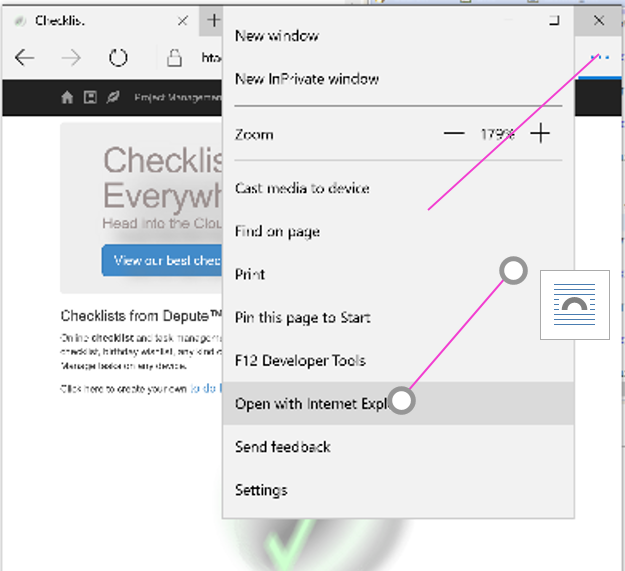
Then shrink the window so you can see the desktop and the browser, press the button identified by the first pink line.
Then drag (by pressing the right mouse button and dragging) the icon from your browser (First pink line) to the desktop (Second pink line)
You can now access your to do list straight from the desktop.
#4 Making A Page Your Home Page with Internet Explorer/IE
If you want to access a web page (e.g. A Web Page showing a Task List displayed in your web browser). Click, "Internet Options"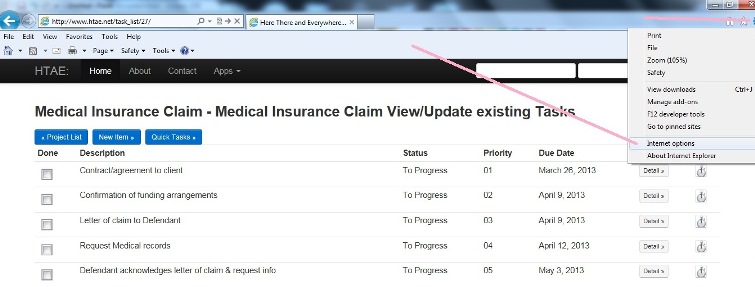
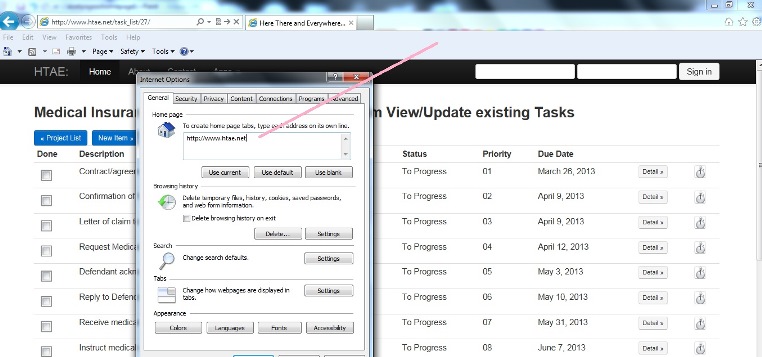
Then set the name of the home page to the page you want. (https://www.htae.net/ for an online task list for example)
#5 Adding Web-site To Favourites List with Internet Explorer/IE
To make a web site accessible in your favourite lists, click favourites then add to favourites.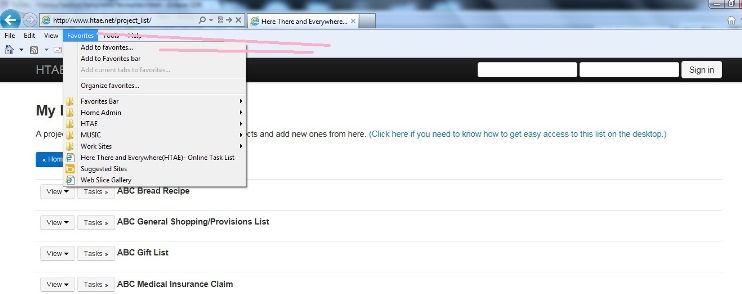
#6 Pin a web site and create a live tile entry from Edge to Windows 10
To make a web site accessible as a tile in a Windows enironment. First select the More button in Edge;
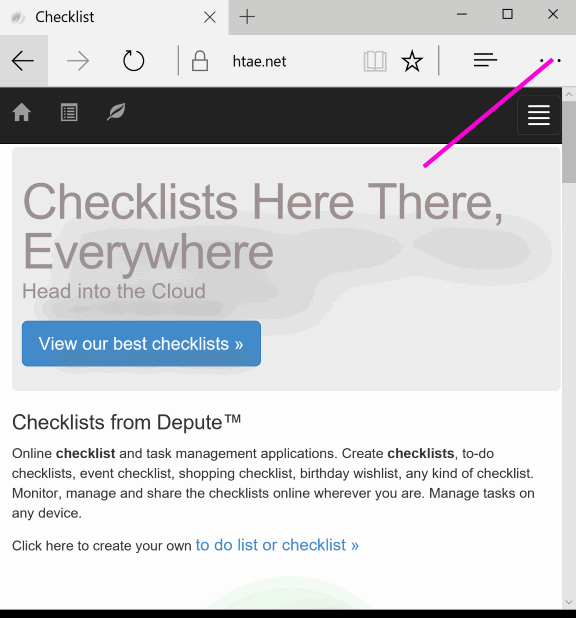
Then select the option to pin this page to start;

Then select Yes to Pin the item;
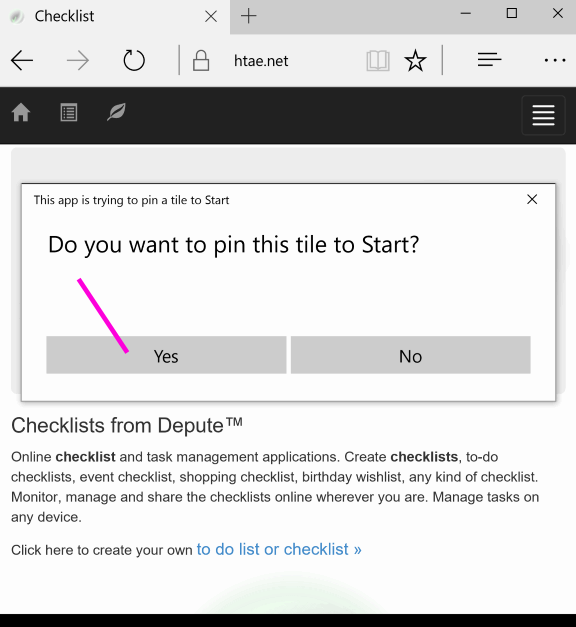
Then you can goto your tiles to access your new icon from the displayed tiles;
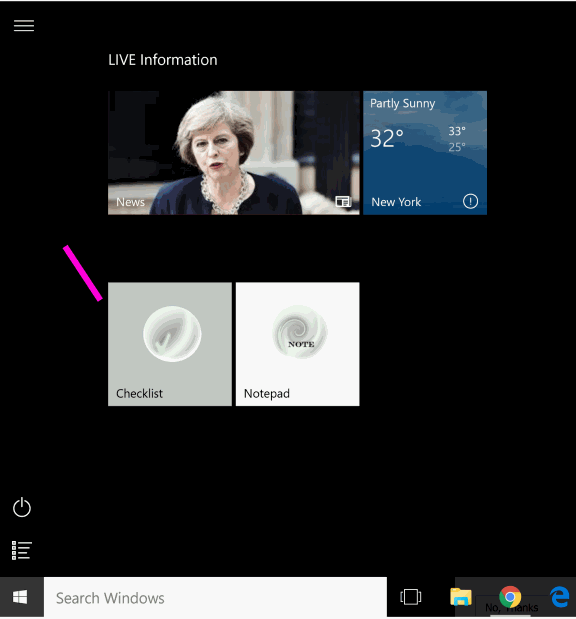
#7 Add Icon To Android Homepage
To add an application to your Android homepage, see how in the video embedded below.
Click here to go back to our online todo list trackerhome page;
Be a pioneer and write the first comment.
Note: Current average rating of based on reviews and ratings. (1-Low, 5-High)
Note: Comments and ratings help this site get better; if you see something missing, see something wrong, have a question, or want to suggest something to improve then comment below and join the dialogue;